How to Use IntelliEats to Scan Your Pantry
Scan a product label and instantly detect unhealthy ingredients and dietary-restriction conflicts in everything sitting in your pantry. This step-by-step guide walks you through the entire process.
Your pantry is full of packaged foods, and every one of them carries an ingredient label that can be hard to decode. Long chemical names, hidden sugars, and artificial additives make it nearly impossible to tell at a glance whether something is good for you. IntelliEats was built to solve exactly this problem. Instead of squinting at tiny print and searching the internet for unfamiliar ingredient names, you simply point your phone at the label and let the app do the heavy lifting. In just a few seconds you will know which ingredients are safe, which ones you should limit, and which ones to avoid entirely.
The process is designed to be effortless. Whether you are doing a full pantry clean-out, comparing two products at the grocery store, or just curious about that snack in your bag, the workflow is the same: scan, analyze, and decide. Below, we break down each step so you can get the most out of every scan.
Step 1 — Open the Scanner
From the home screen, choose how you want to scan. Tap Camera to photograph the ingredient label directly, Gallery to upload an existing photo, or Barcode to look up a product. Point your camera at the ingredient list — not the front of the package — and make sure the text is well-lit and in focus. Remember: the accuracy of detection depends on the quality of the image.
Step 2 — Let IntelliEats Analyze
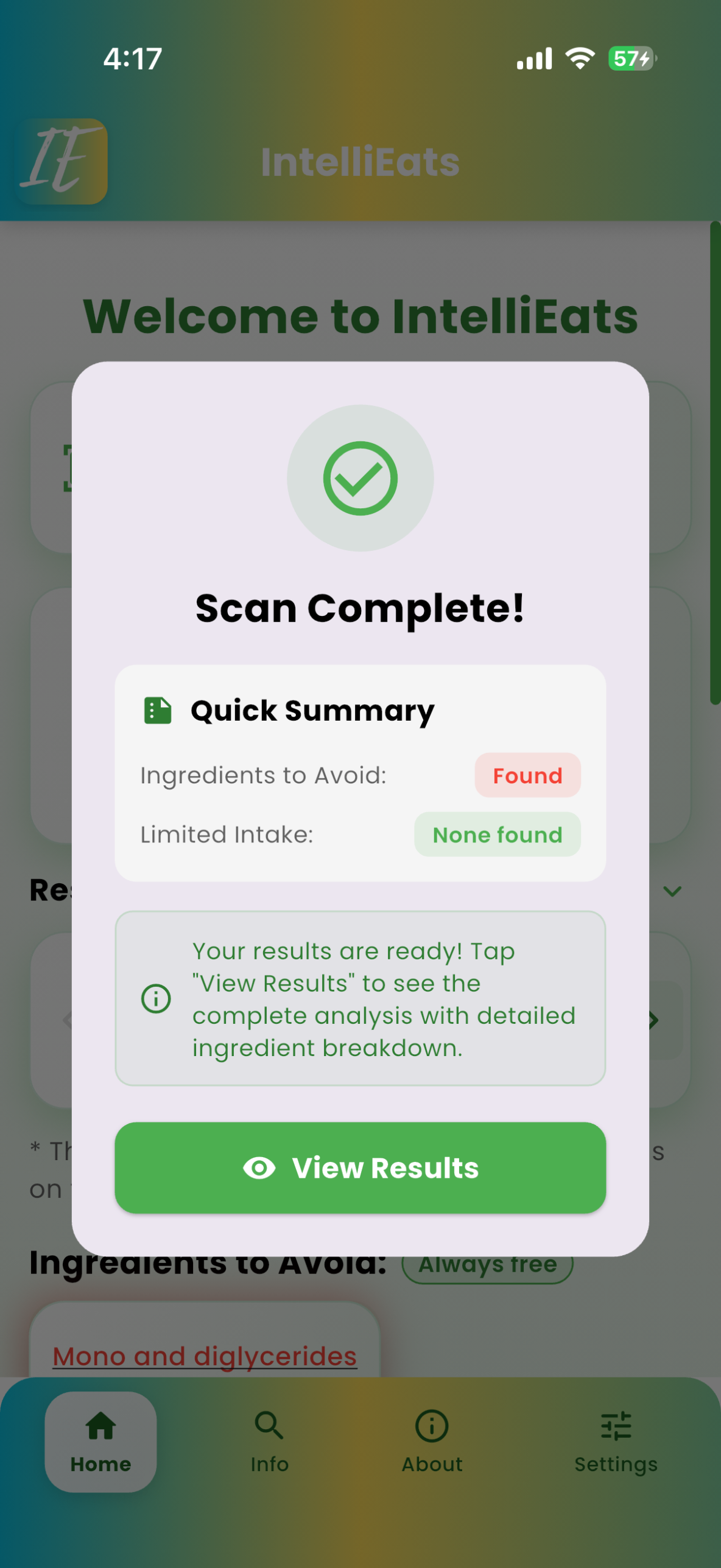
Once you capture the label, IntelliEats reads the text and instantly analyzes every ingredient. You will see a Scan Complete summary that tells you at a glance whether any Ingredients to Avoid or Limited Intake ingredients were found. Tap View Results to dig into the full breakdown.
Step 3 — Review Your Results
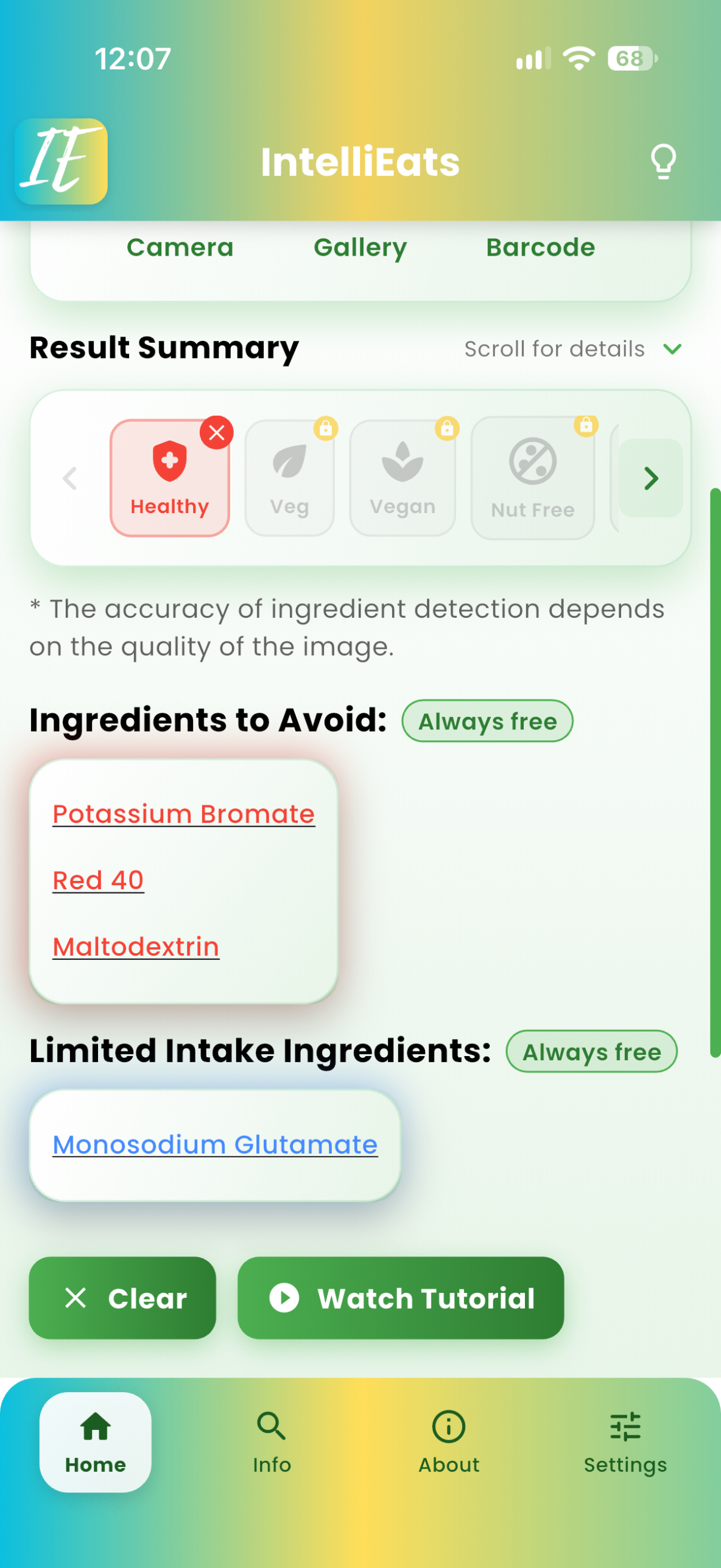
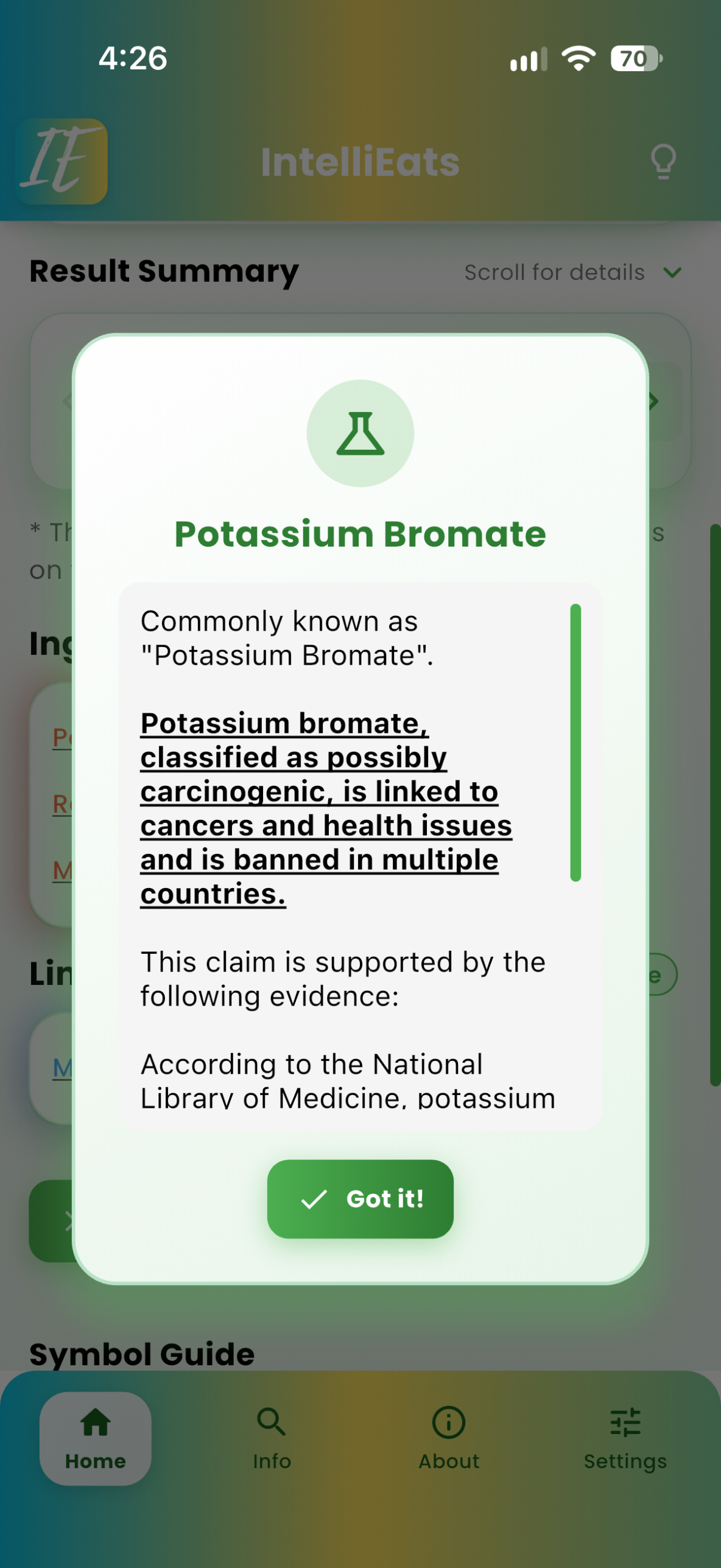
The results screen clearly separates Ingredients to Avoid (shown in red, such as Red 40, Yellow 6, Yellow 5, and Dextrin) from Limited Intake Ingredients (such as Monosodium glutamate). Tap any highlighted ingredient to learn why it was flagged and how it may affect your health. These two categories are always free.
Step 4 — Personalize Detection Settings
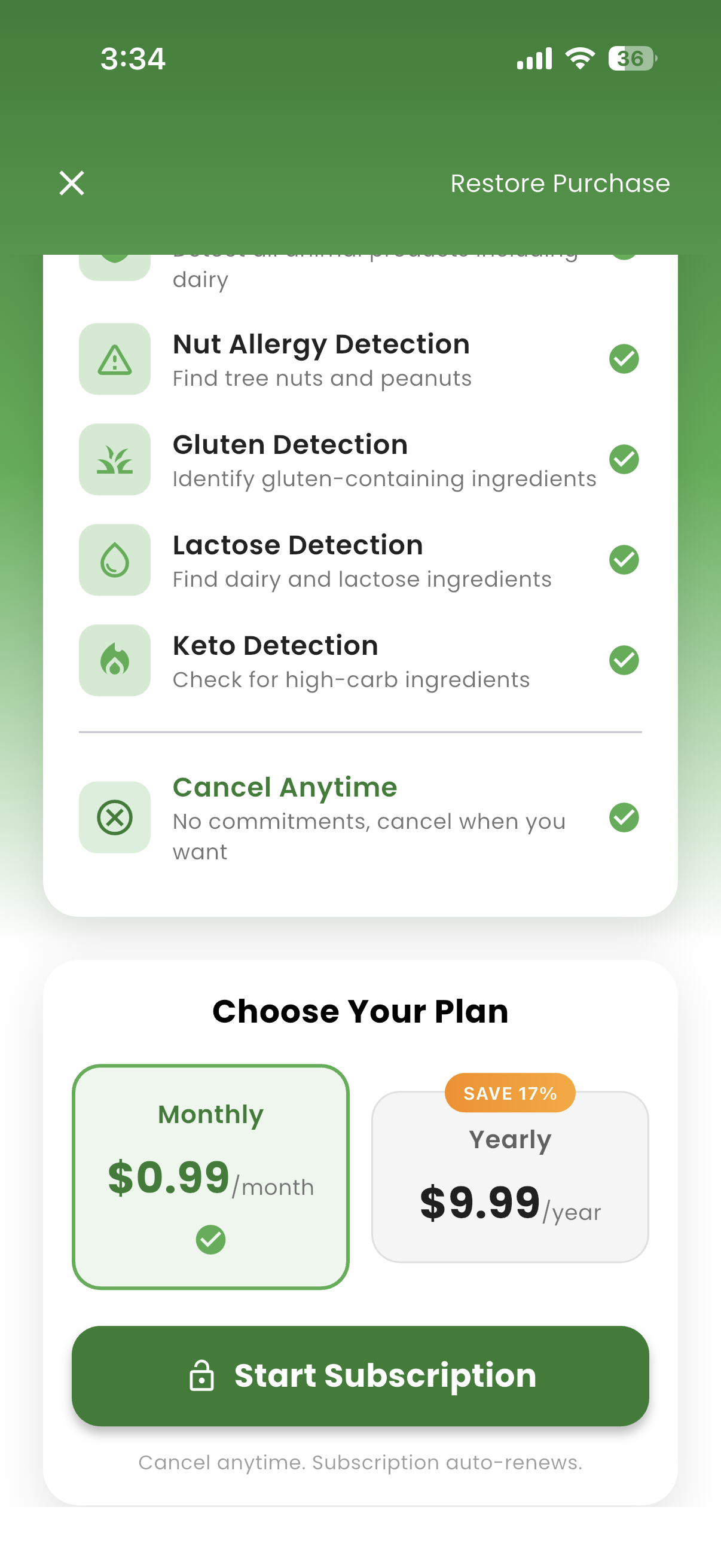
Head to Settings to tailor the scanner to your own diet. Enable detection for dietary restrictions like Vegetarian, Vegan, Nuts, Gluten, Lactose, and Keto so IntelliEats flags ingredients that conflict with how you eat. Now every scan is personalized to you.
Detecting Unhealthy & Dietary-Restriction Ingredients
IntelliEats does more than spot generally "unhealthy" additives. It also understands your personal dietary needs. If you are vegetarian, vegan, keto, or managing allergies to nuts, gluten, or lactose, the app will flag any ingredient that conflicts with your chosen restrictions. This means a single scan protects you from both long-term health risks — like artificial dyes and trans fats — and immediate concerns like an allergen hiding under an unfamiliar name.
By scanning everything in your pantry once, you build a clear picture of what you and your family are really eating. Over time, you will start to recognize the worst offenders on your own, shop smarter, and replace problematic products with cleaner alternatives. Healthier choices start with understanding what is really inside the package — and IntelliEats makes that understanding instant.
Tip of the Day
Red 40 & Yellow 5/6
Artificial food dyes linked to hyperactivity in children and possible carcinogenic effects. Banned or restricted in several countries.
Commonly found in: Candy, soft drinks, cereals, snack chips